
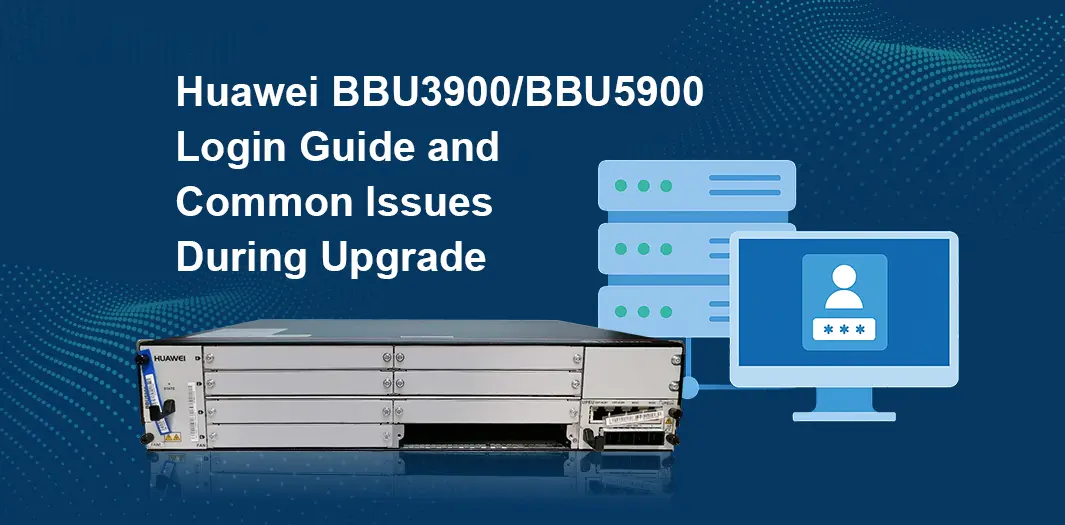
Huawei BBU3900 / BBU5900 are baseband units (BBU) used in wireless base stations, widely deployed in LTE and 5G communication systems. This article introduces the login methods for the devices and summarizes common issues encountered during upgrade processes along with corresponding solutions for reference.
1. Device Login Methods
1.1 Local Console Login
Required Equipment:
Console cable (Huawei original adapter), USB-to-serial cable, PC, terminal software (recommended: SecureCRT, PuTTY, etc.).
Connection Method:
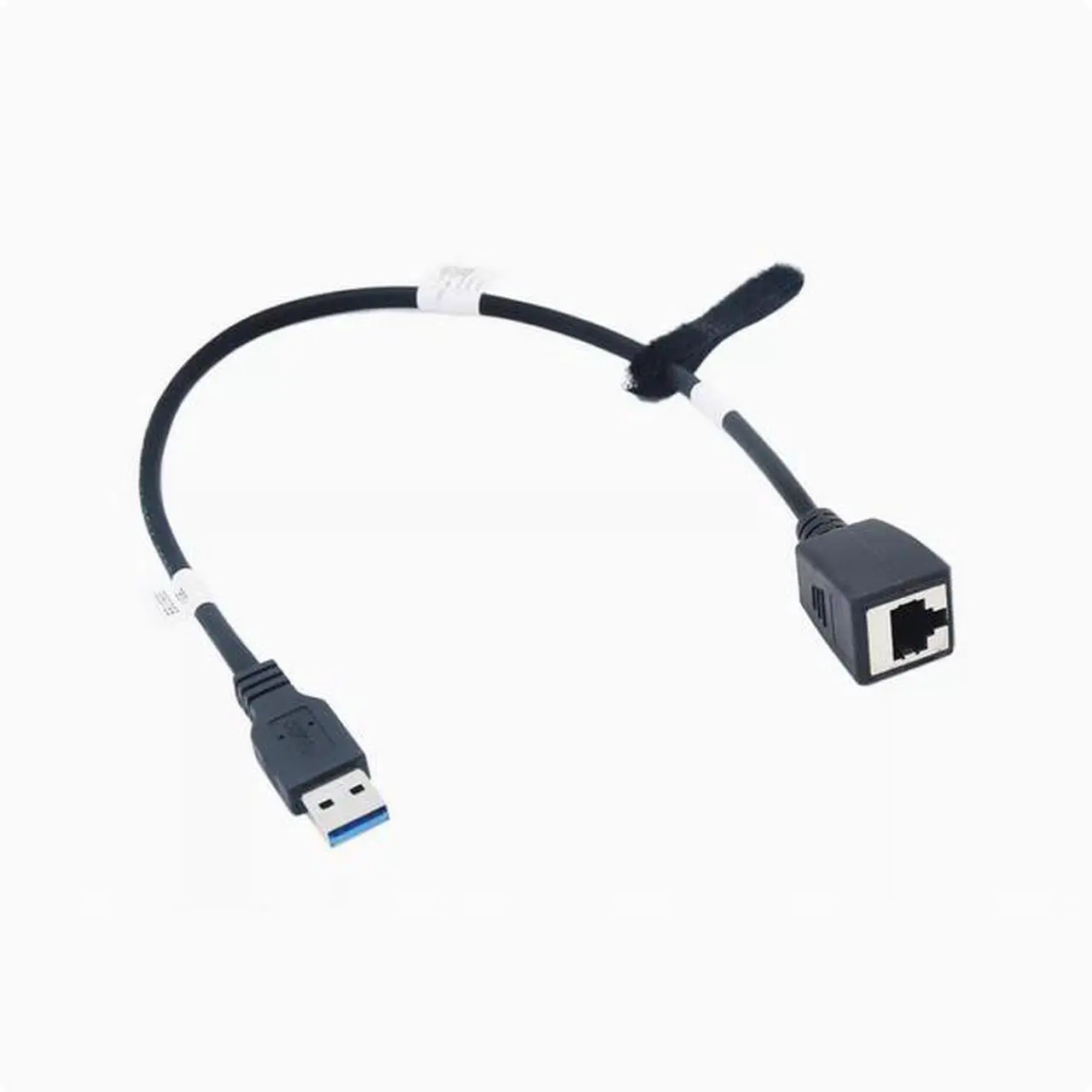
Use Huawei’s original adapter cable. One end connects to the USB port of the main control board on the device, and the other end connects to the PC’s network port via Ethernet cable.
1.2 Configure PC IP Address
Set the local IP of your PC as follows:
IP Address: 192.168.0.200
Subnet Mask: 255.255.255.0
Then test connectivity by pinging the device IP (192.168.0.49) using Command Prompt or a network tool.
1.3 Access via Web Browser
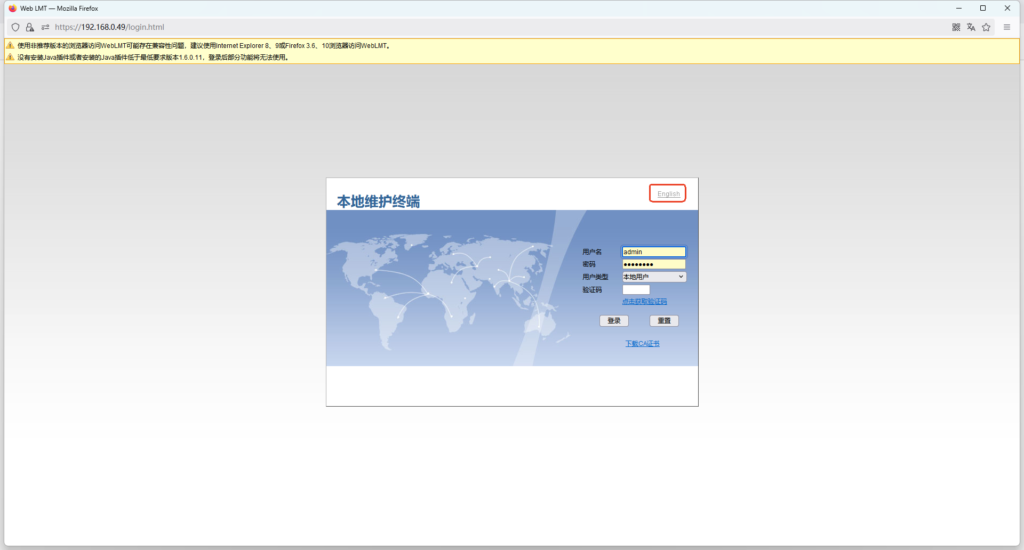
Open a web browser (latest version of Firefox is recommended) and enter the following URL: http://192.168.0.49
1.4 Login Credentials
Default Username: root or admin
Default Password: Depends on device configuration
1.5 Execute Commands in Maintenance Interface
Click on the “MML” page. Common MML commands are listed in the left panel—double-click any command to execute it.
2. Common MML Commands
| Command | Function Description |
|---|---|
| LST SOFTWARE | Check software version |
| LST VER | Check currently running version |
| LST PATCH | View installed patches |
| LST SUBRACK | View subrack configuration |
| DSP BRD | Check board status |
| LST BBP | View baseband board configuration |
| LST RRU | Check RRU configuration |
| DSP ELABEL | View equipment SN/label info |
3. Common Issues & Solutions
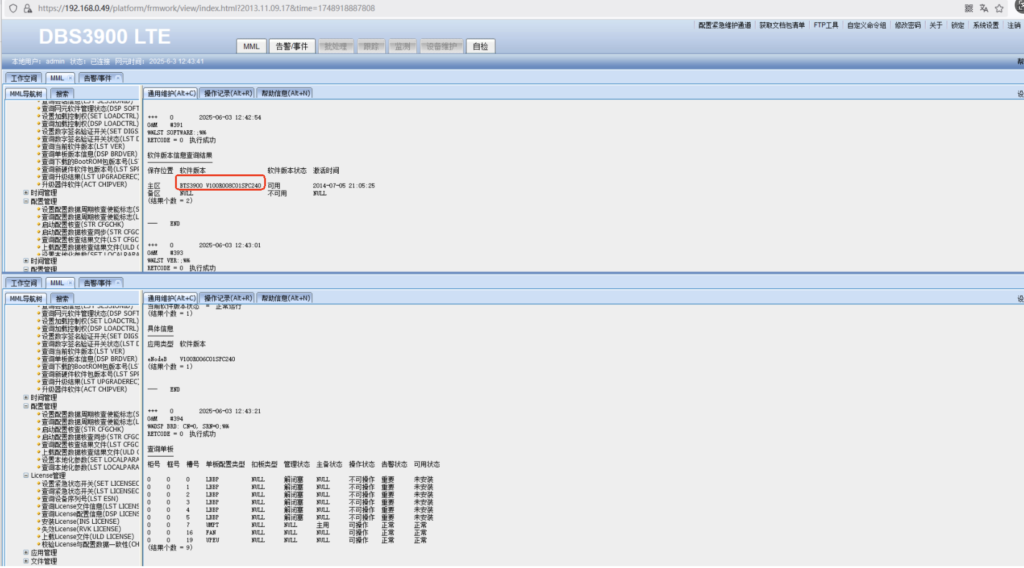
Issue 1: BBU3900 functions properly but is outdated; the version may not be accepted by the network
Solution:
First confirm the target network’s base station software version and management platform version (e.g., U2000 or NCE).
If an upgrade is needed, update the local version to a newer one.
The recommended version as of now is: BTS3900/5900 V100R020C10SPC220
Issue 2: BBU3910 displays as BBU5900 upon login
Analysis:
BBU3900 and BBU5900 use common hardware boards. The system defaults to displaying as BBU5900, but the hardware is compatible with BBU3900.
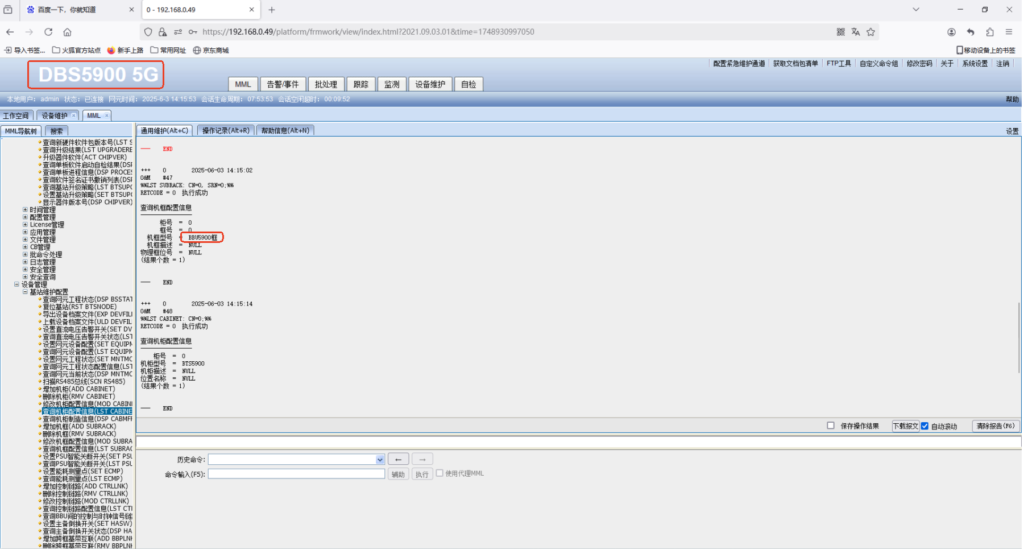
Solution:
Customers can manually add a note in their network management platform (e.g., NCE or U2000) to clarify the actual device model.
If display information needs to be modified, the chassis model can be changed using the MOD SUBRACK command.
Note: The site type cannot be changed via command and must be modified through planning adjustments.
For further assistance with network management configuration, version upgrade procedures, or specific board compatibility, please feel free to contact our technical support team at csd@telecomate.com.







Leave a comment