
Diagnosing why cannot ssh to Cisco switch happens demands moving beyond panic into a methodical elimination of potential blockers. Let’s break down the likely culprits:
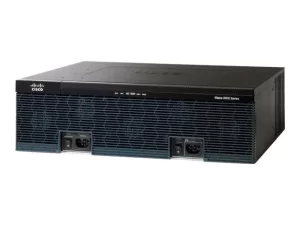
- Layer 1 Gotchas: Is the Physical Path Alive? Sounds basic, but it’s astonishingly common. Verify:
- Link Lights: Check the physical port status on both the switch and your management workstation/router/firewall. Is the port LED solid green (or amber for 10/100)? Blinking? Off? Don’t trust GUI indicators alone; physically inspect. A loose cable or faulty SFP/module often causes “silent” failures.
- Interface Status: Hop onto any accessible console (yes, get the serial cable out!) and run
show interfaces statusorshow interfaces gigabitethernet1/0/1(use the relevant interface). Look forconnectedstatus and an “up/up” line protocol. If it’snotconnectorerr-disabled, you’ve found ground zero. Investigate speed/duplex mismatches (show interfaces <intf> status), port security violations (show port-security), or underlying hardware faults. - Reachability Test: From a device confirmed on the same subnet as the switch’s management interface, ping its IP address. Consistent failure points squarely to a Layer 1/2 or IP address misconfiguration problem before SSH even gets a chance.
- IP Configuration: Is the Switch Reachable… At All?
- Correct Management IP? Verify the
show run interface vlan <x>(orshow ip interface brief) output. Is the IP address you’re using for SSH configured and active on the intended SVI (Switch Virtual Interface) or routed port? Common slip-ups include assigning the IP to the wrong VLAN interface or simply mistyping it during configuration. - Subnet Match? Double-check that the IP address of your SSH client (your laptop/admin station) and the gateway configured on the switch (if needed) are correctly aligned with the subnet mask on the switch’s management interface. An incorrect subnet mask on either side will break local communication.
- Default Gateway Necessity: Is your SSH client sitting on a different subnet? If yes, the switch must have a default gateway configured (
ip default-gateway <ip-address>orip route 0.0.0.0 0.0.0.0 <gateway-ip>). Without it, the switch can’t route replies back to off-subnet clients. Useshow ip routeto confirm the gateway route exists.
- Correct Management IP? Verify the
- SSH Service Itself: Is the Door Even Unlocked?
- Is SSH Running? Console in. Run
show ip ssh. Do you seeSSH Enabled - version <number>? If it simply says SSH is disabled, that’s your smoking gun (ip ssh version 2+crypto key generate rsa modulus 2048usually enable v2). Sometimes SSH gets accidentally disabled viano ip ssh. - Version Mismatch? Legacy equipment or misconfigurations might force v1. While insecure, clients might be configured only for v2. Check
show ip sshoutput. If it shows v1 support enabled (1.99means both v1 and v2), forcing v2 only (ip ssh version 2) might resolve incompatible client/server negotiation attempts that cause silent failure. Conversely, very old clients might only speak v1 where it’s disabled. - Authentication Method: Confirm your switch is set to accept SSH login attempts using your intended method (
aaa authentication login default localfor local usernames/passwords,aaa authentication login default group tacacs+for AAA servers, etc.). Incorrect AAA settings on the switch or a failure reaching the TACACS+/RADIUS server will block logins.
- Is SSH Running? Console in. Run
- Security Layers: Are Filters or AAA Blocking You?
- Interface ACLs: This is a classic oversight. Run
show ip interface <management-intf>(e.g.,show ip interface vlan10). Look forInbound access listorOutbound access list. An ACL applied inbound on the management interface needs to explicitly permit TCP port 22 traffic towards the switch’s IP. An ACL applied outbound might be blocking the switch’s reply. Check ACL content (show access-lists <acl-name>) for permit/deny rules related to SSH. - VTY Line ACLs: SSH uses the VTY lines. Run
show running-config | section line vty. Look for anaccess-class <acl-name> incommand. This ACL, applied to incoming VTY connections (i.e., SSH), must permit the IP address(es) of your SSH clients. Its absence or overly restrictive rules will deny access. - AAA Server Connectivity: If using TACACS+/RADIUS, console into the switch and attempt to test authentication against the server (
test aaa group <group-name> <username> <password> new-code). Failures here indicate server communication issues, server-side configuration problems, or mismatched shared secrets. Don’t forget time synchronization (show clockvs. server time) if using token-based auth. - User Privileges: Ensure the account you’re using has the
privilege level 15set (username <name> privilege 15 secret <password>) or sufficient privilege through AAA/RBAC to allow the login type you’re attempting.
- Interface ACLs: This is a classic oversight. Run
When cannot ssh to cisco switch becomes a resolved footnote instead of a roadblock, the feeling is pure operational oxygen.)Securely managing your infrastructure remotely isn’t just about convenience; it’s the bedrock of proactive network hygiene, rapid incident response, and efficient scaling. Successfully navigating past this hurdle means restoring critical visibility and control. You regain the ability to deploy consistent configurations across your fleet, instantly capture diagnostic outputs when anomalies strike, and apply security patches without physical site visits. Mastering this methodical diagnostic approach – checking Layer 1 first, methodically verifying connectivity and configurations, scrutinizing SSH service status, and meticulously reviewing security controls – transforms what feels like a frustrating outage into a systematic, solvable puzzle. Keep this checklist handy; it’s the difference between hours lost wondering and minutes spent restoring your vital connection to the Cisco switches commanding your network’s core pulse. That restored SSH prompt isn’t just access regained; it’s command reaffirmed.







Leave a comment