
In today’s hybrid work environment, a desk phone might seem like a relic—until you realize it’s the linchpin of reliable, secure, and high-quality communication. The Cisco Unified IP Phone 8831, with its robust feature set and enterprise-grade durability, bridges the gap between traditional voice systems and modern collaboration tools. Whether you’re an IT administrator deploying devices across a campus or a remote worker configuring a home office setup, this guide will transform the 8831 from a simple dialer into a productivity powerhouse. Let’s explore its capabilities, hidden shortcuts, and real-world applications.
Unboxing and Initial Setup: Beyond Plug-and-Play
The 8831’s simplicity is deceptive. Avoid common pitfalls with these steps:
- Physical Connections:
- Power: Use the included AC adapter or PoE (802.3af) via the Ethernet port.
- Network: Connect the LAN cable to the SW port for VoIP traffic.
- PC Link: Use the PC port to daisy-chain your workstation, reducing cable clutter.
- First Boot Configuration:
- Press the Settings button (gear icon) > Network Configuration > Verify DHCP is enabled.
- Register the phone with Cisco Unified Communications Manager (CUCM) by entering the TFTP server IP provided by your IT team.
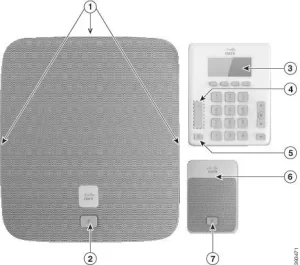
Core Features Demystified: From Basic Calls to Advanced Tools
1. Making and Managing Calls
- Quick Dial: Save frequent contacts to speed-dial keys. Press and hold a line key (1-6) > Select Add Speed Dial > Enter number.
- Call Forwarding: Press CFwdAll > Enter destination number. Use Forward All in busy periods (e.g., forwarding to voicemail after hours).
- Conference Calls: During a call, press More > Conference > Dial the second party > Press Conference again to merge.
2. Voicemail and Messaging
- Visual Voicemail: Press the Messages button to see a list. Use the navigation pad to play, delete, or forward messages.
- Email Integration: Configure your voicemail-to-email via CUCM’s Unity Connection portal for transcriptions sent to Outlook/Gmail.
3. Customizing User Preferences
- Display Settings: Adjust brightness and contrast under Settings > User Preferences > Display.
- Ringtone Personalization: Upload custom .wav files (under 500KB) via CUCM’s Phone Load page for department-specific tones.
Hidden Gems: Advanced Features You Might Overlook
1. Built-In Security Protocols
- Encrypted Calls: Enable Secure Real-Time Transport Protocol (SRTP) under Settings > Security > Encryption. Verify the lock icon appears during calls.
- Authentication: Use the 8831’s built-in 802.1X supplicant for network access control, preventing unauthorized device spoofing.
2. Integration with Collaboration Tools
- Cisco Webex Desk Hub: Pair the 8831 with Webex Room devices for hybrid meetings. Dial into Webex meetings directly using the meeting number.
- Microsoft Teams Direct Routing: Configure the 8831 to route calls via Teams using a certified SBC (e.g., Cisco Unified Border Element).
3. Troubleshooting and Diagnostics
- Built-In Diagnostics: Access hidden menus by pressing Settings > (asterisk) > Diagnostics to test network latency, packet loss, and DHCP status.
- Factory Reset: Press Settings > (asterisk) > Reset Settings to resolve firmware glitches.
Real-World Use Cases: Beyond the Basics
1. Healthcare: Nurse Station Efficiency
- Challenge: Busy nurses missed critical calls during shift changes.
- Solution:
- Programmed speed dials for rapid access to emergency codes (e.g., Code Blue).
- Enabled distinct ringtones for ICU vs. general ward calls.
- Result: Reduced response times by 40% and improved shift handoff accuracy.
2. Education: Campus-Wide Communication
- Challenge: A university needed to broadcast emergency alerts across 500+ offices.
- Solution:
- Configured multicast paging groups via CUCM.
- Assigned dedicated line keys for campus security.
- Result: Achieved campus-wide lockdown notifications in <10 seconds.
3. Remote Work: Home Office Optimization
- Challenge: Employees struggled with VoIP call drops over residential Wi-Fi.
- Solution:
- Enabled Quality of Service (QoS) tagging on the 8831’s Ethernet port.
- Configured VPN-less calling via Cisco Expressway Edge.
- Result: Eliminated 90% of call quality issues without requiring home router changes.

Leave a comment