
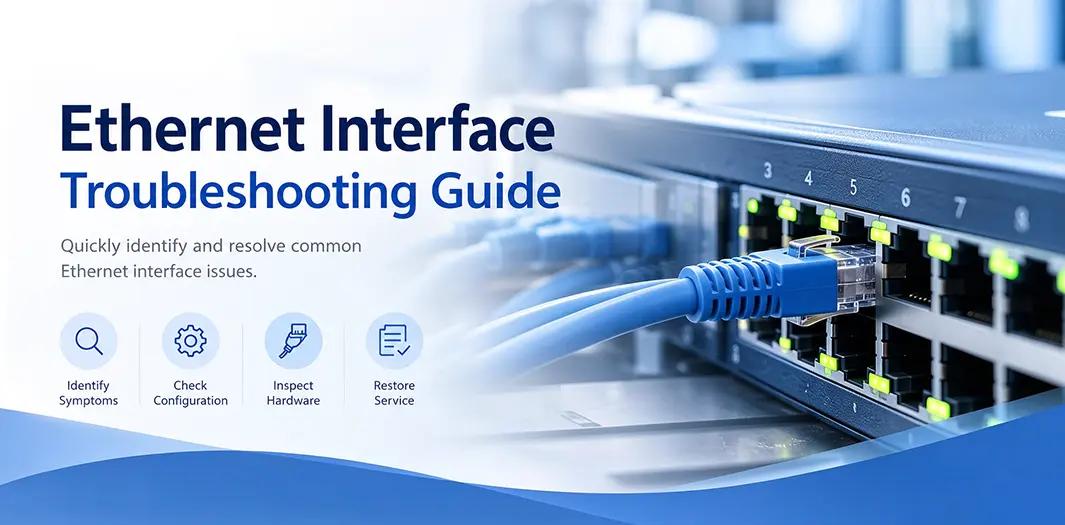
Support: How to Troubleshoot Frequent Ethernet Interface Up/Down Issues
1. Troubleshoot Frequent Ethernet Interface Up/Down Issues Overview
Ethernet interface flapping occurs when a network interface repeatedly transitions between the Up and Down states. This issue may cause intermittent connectivity, packet loss, service interruptions, and frequent link status messages in system logs.
Common causes include faulty cables or optical modules, incorrect interface configurations, port instability, LACP configuration mismatches, and network adapter or driver issues.
This guide explains how to identify the root cause and troubleshoot frequent Ethernet link Up/Down events.
2. Common Causes
- Faulty physical connections: Damaged Ethernet cables, fiber-optic cables, connectors, or transceivers.、
- Configuration mismatches: Inconsistent speed, duplex, or auto-negotiation settings between connected devices.
- Port status or protection mechanisms: Interfaces being reset, administratively disabled, or affected by err-disable, loop protection, or energy-saving features.
- Link aggregation issues: Mismatched Bonding or LACP configurations between servers and switches.
- Hardware or software problems: Network adapter faults, outdated drivers or firmware, unstable power supplies, or overheating.
3. Troubleshooting Steps
Step 1: Check Physical Connections
Inspect the physical link between the two devices.
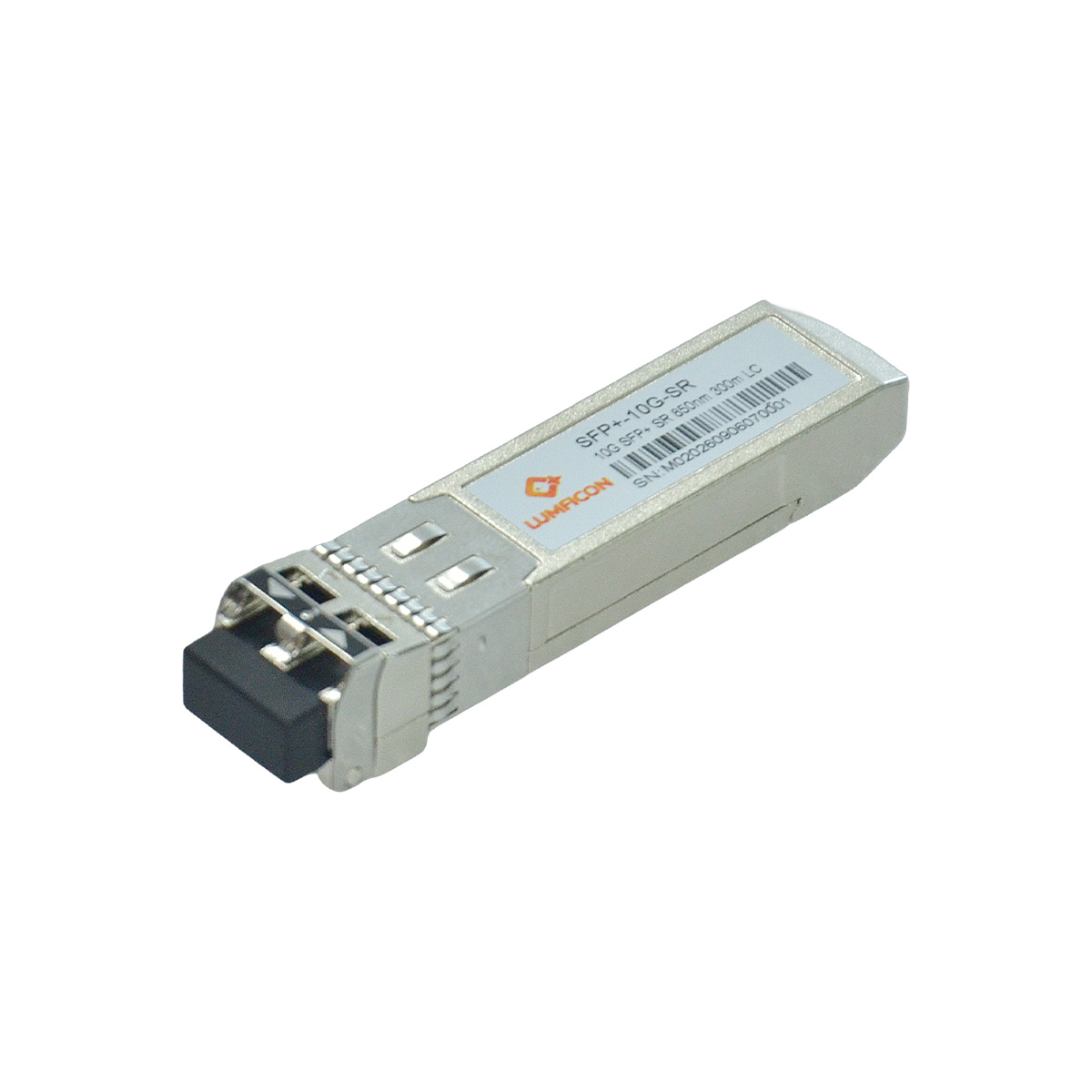
1. Replace the Ethernet cable, fiber-optic cable, optical module, or adapter with a known-good component.
2. Reseat the connectors at both ends.
3. If possible, connect the device to another switch port to determine whether the issue is related to the cable, module, or port.
4. For optical connections, verify that the optical module type and transmission distance meet the requirements of the connected devices
If the issue disappears after replacing a cable or optical module, the original component may be faulty.
Step 2: Check Interface Statistics
Review the interface statistics on both connected devices. Pay particular attention to the following indicators:
- CRC errors: May indicate transmission errors caused by cabling, optical modules, or physical-layer problems.
- Packet loss: May indicate link instability or congestion.
- Alignment errors: May indicate frame reception problems.
- Carrier errors: May indicate physical-layer or link signal issues.
- Check whether these counters continue to increase while the interface is flapping.
If errors increase rapidly, investigate the physical connection and interface configuration first.
Step 3: Verify Speed, Duplex, and Auto-Negotiation
Ensure that both ends of the connection use compatible interface settings.
- Check the following:
- Interface speed is supported and consistent on both devices.
- Duplex settings match.
- Auto-negotiation is configured appropriately for both ends.
- Neither side is forced to use a setting incompatible with the other side.
For example, configuring one device for forced speed and duplex while the other uses auto-negotiation may cause connectivity or performance problems.
Where possible, use the recommended auto-negotiation settings supported by both devices.
Step 4: Check Interface Status and Protection Mechanisms
Check whether the switch port has been reset, administratively disabled, or affected by protection mechanisms.
Review the system logs for messages related to:
- Interface shutdown or restart events
- Err-disable conditions
- Loop protection
- Energy-saving features
- Other port protection or recovery actions
If the interface enters an err-disable state, identify the triggering condition before attempting to restore the port. Simply re-enabling the interface may not resolve the underlying issue.
Step 5: Verify Bonding and LACP Configuration
If the server uses NIC bonding or the switch uses link aggregation, verify that both sides are configured correctly.
Check the following:
1. Confirm that all member interfaces are physically up and operating normally.
2. Verify that the LACP mode and aggregation group configuration match the intended design.
3. Check whether any member interface repeatedly joins or leaves the aggregation group.
4. Review LACP status and system logs for negotiation failures or configuration mismatches.
If the issue affects only one member interface, troubleshoot that interface separately before investigating the entire aggregation group.
Step 6: Check the Network Adapter and Device Environment
If the physical connection and switch configuration appear normal, investigate the server or network device itself.
- Update or verify the network adapter driver.
- Check whether a firmware update is required.
- Inspect system logs for network adapter resets or hardware errors.
- Verify that the device has a stable power supply.
- Check whether the device temperature is within the recommended operating range.
If the problem consistently follows the same server interface, even after changing cables and switch ports, focus on the network adapter, driver, firmware, and interface configuration.
4. Summary
Frequent Ethernet interface Up/Down events are usually related to physical connectivity, interface configuration, port behavior, link aggregation, or network adapter problems.
To troubleshoot efficiently, start with the physical connection, check interface error counters, verify speed and duplex settings, and then investigate port protection mechanisms, LACP, and device health.
Changing one component or configuration at a time helps isolate the root cause and reduces unnecessary troubleshooting.
Leave a comment