

This FAQ covers common questions about Huawei OLT / ONU deployment, including RTU license issues, PON bandwidth control, Wi-Fi ONU management, and VLAN configuration.
1.MA5801-GP08-H3 Alarm: “Port Lacks RTU Resources”
Issue
- On Huawei MA5801 with GP08-H3 board, software version R022C10SPH207:
- ONTs such as HG8310M and HG8245Q2 cannot come online
- Alarm: Port lacks RTU (license) resources
- The same ONTs work normally on MA5801-GP16-H2 (R022C11SPH209), including Wi-Fi 6 ONTs
Root Cause:This is NOT an ONT compatibility issue and NOT a hardware problem.
The real reason is:
- In R022C10, the GP08 board does not include GPON RTU licenses by default
- Without RTU licenses, GPON ports cannot carry service
- When an ONT tries to register, the system reports RTU resource shortage
- In R022C11 and later versions, this license behavior is optimized, so the issue does not occur.
Solutions
- Temporary: Load License Emergency to quickly restore service
- Permanent: Apply and load the official RTU license (.xml file)
- Recommended: Upgrade to R022C11 or later

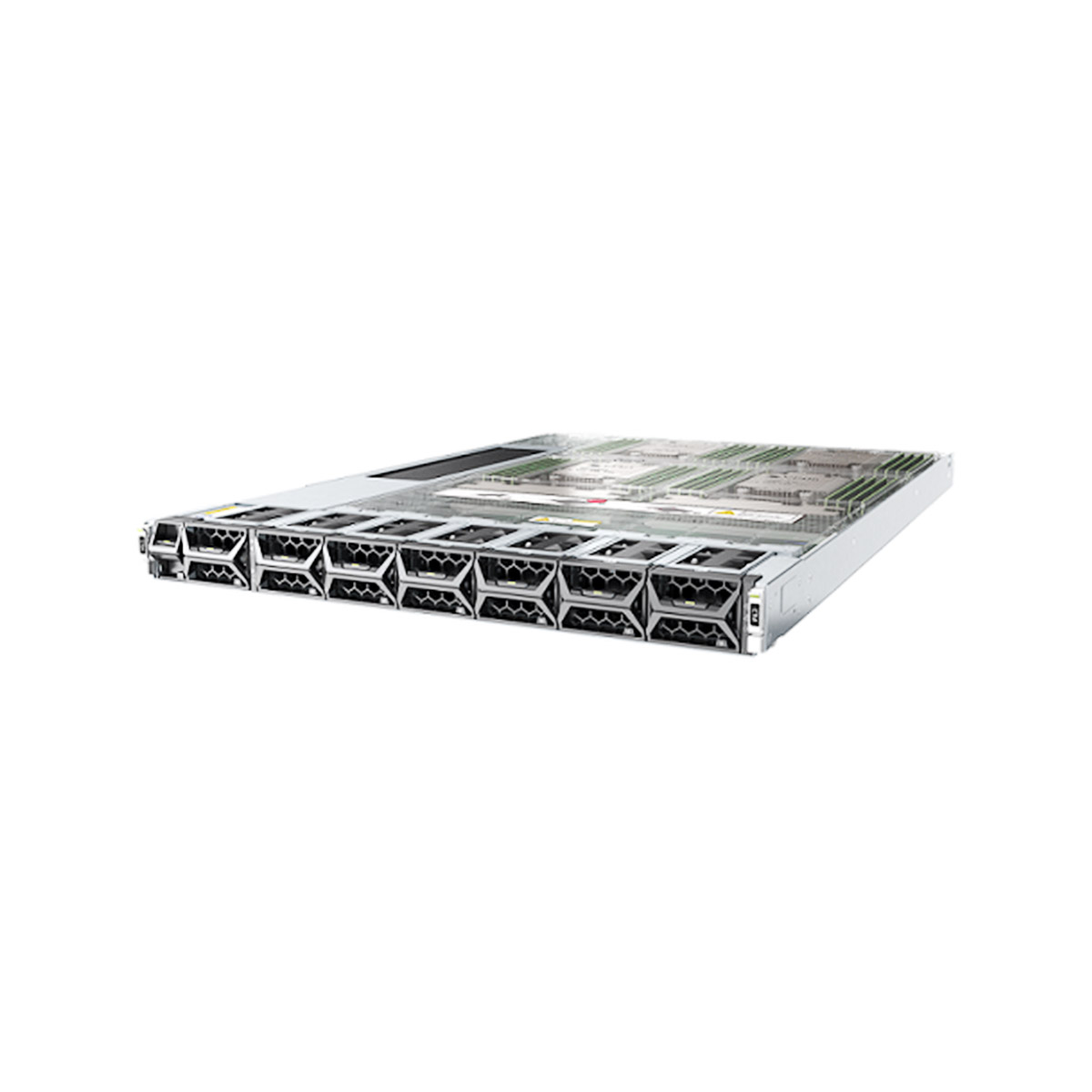
MA5801-GP08-H3
MA5801-GP08-H3 is a box-shaped(1U) OLT, which houses integrated control and service module, 1 pluggable fan module, 2 pluggable power modules, 8 GPON ports, 4 GE/10GE Uplink ports, 4 common interfaces2.Can MA5680T Limit Total Downlink Bandwidth per PON?
Answer: Yes, it can.
- However, ACL is not recommended.
- Recommended Method: Use the OLT’s built-in PON Traffic Shaping function.
Why:
- ACL is complex and less efficient
- Traffic Shaping is native to the OLT
- Better performance and easier management
Typical Use
- Limit total downstream bandwidth per PON
- Prevent bandwidth abuse
- Improve QoS control
3.Do Wi-Fi ONUs Require an Ethernet Cable to Disable Wi-Fi?
Answer:No, an Ethernet cable is not mandatory.
Common Ways to Disable Wi-Fi
1. Hardware Button
- Press and hold the WLAN/Wi-Fi button for about 5 seconds
- Wi-Fi turns off immediately
2.Via Wi-Fi Web Login
- Connect to the ONU’s Wi-Fi
- Open a browser and go to 192.168.1.1
- Disable Wi-Fi in Wireless Settings
3.Via Ethernet Web Login
- Connect a PC to the ONU LAN port
- Log in and disable Wi-Fi
- This is the most stable method, but not required
4.How to Configure VLAN by Port and PPPoE / IPoE on Huawei ONU?
Configuration Logic
This requires ONU side + OLT side configuration.
ONU Side (Web Interface)
- Configure WAN connections
- Select PPPoE or IPoE
- Set WAN type and service type
OLT Side (Example Command)
ont port native-vlan 1 1 eth 1 vlan 101 priority 0
This command assigns a default VLAN to the ONU Ethernet port.
Use Case
- Different services on different ports
- Separate PPPoE and IPoE traffic
- Multi-service access
5.Difference Between ont port vlan and ont port native-vlan
ont port vlan
- Assigns a specific VLAN to a port
- Used for tagged VLAN traffic
- Suitable for advanced or multi-VLAN scenarios
ont port native-vlan
- Sets the default VLAN for a port
- Used for untagged traffic
- Common in standard user access deployments
Comparison
| Item | ont port vlan | ont port native-vlan |
|---|---|---|
| Traffic Type | Tagged | Untagged |
| VLAN Tag Needed | Yes | No |
| Typical Use | Precise VLAN control | Default user access |






Leave a comment