
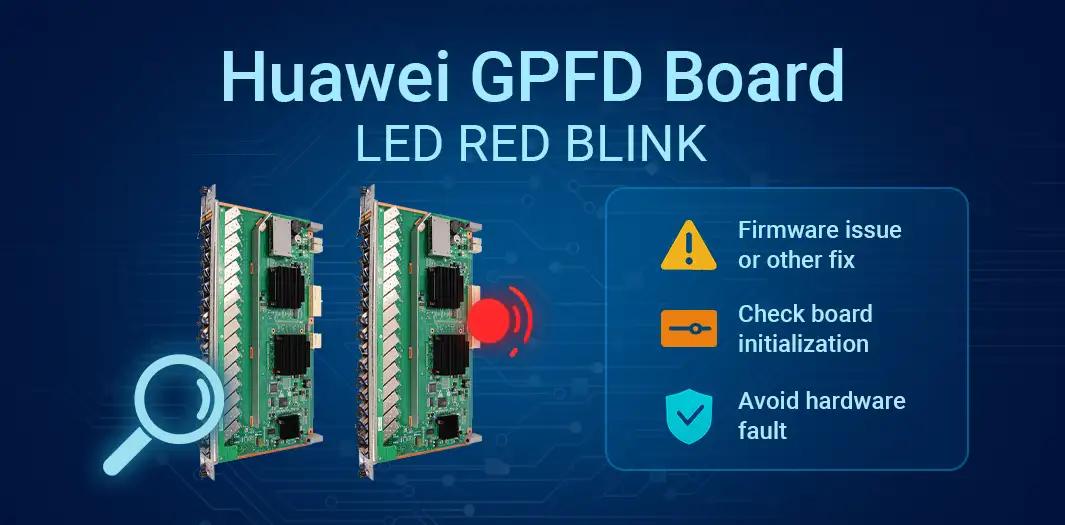
When working with Huawei MA5683T/MA5600T series OLTs, a red blinking LED on a GPFD card can be alarming — especially when the card is brand new. Although many engineers initially suspect hardware failure, this issue is far more commonly related to software compatibility, firmware support, or board initialization problems.
Here’s a complete guide on how to diagnose and resolve this problem effectively.
1. Symptom Description
- The GPFD card’s RUN LED keeps blinking red after insertion.
- Swapping the card to another slot produces the same behavior.
display alarmshows no abnormal alarms.- The OLT cannot properly recognize or register the board — the slot may show incorrect board type or an abnormal status.
A blinking red LED generally indicates the board is in the APP startup phase but fails to pass initialization or self-tests.
2. Possible Root Causes
1. OLT software version does not support the GPFD board
Different batches and hardware versions of GPFD cards require certain minimum software or patch versions. If your OLT is running an older version, it may fail to initialize or identify the board.
2. Board registration failure
If the board fails to register during startup, the LED will continue blinking red.
3. Missing or incompatible firmware/board package
Some new GPFD boards require an additional patch or board package file to load properly.
4. Physical connection issues (less likely)
- Incomplete insertion
- Dirty backplane contacts
- Defective slot (often ruled out if multiple slots show the same issue)
5. Hardware defect (DOA)
Rare but possible. A brand-new board can still fail self-tests due to internal hardware issues.
3. Step-by-Step Troubleshooting
1. Check the board status
display board 0Look for:
- Correct board type displayed?
- Slot status:
Normal,Initial,Unknown, orAbnormal?
If it shows Unknown or Abnormal, this usually points to software/firmware incompatibility.
2. Reset or activate the board
board confirm 0/x
board reset 0/x
Replace x with the slot number.
A manual reset sometimes helps the board complete the initialization process.
3. Verify software compatibility
Check:
- Main software version
- Patch/SPH version
- Release notes for GPFD support
If your software version predates the GPFD batch, the board may never complete the startup sequence.
4. Check if the required board package is installed
Some newer GPFD cards need:
- Matching
.bindriver - Board adaptation package
Without this, the OLT cannot drive the card during startup.
5. Perform physical inspections
- Ensure the card is firmly seated
- Clean edge connectors
- Test in a known-good slot
If multiple slots behave identically → the problem is not the chassis.
4. Common Solutions
✅ Solution 1: Upgrade the OLT software to a version that supports the GPFD card
This is the most common fix. Unsupported boards will remain stuck in the APP loading phase.
✅ Solution 2: Install the required GPFD board driver/patch package
Even with a compatible main version, missing board firmware can cause startup failure.
✅ Solution 3: Reset the board or re-activate the slot
Useful for temporary initialization failures.
✅ Solution 4: Hardware RMA replacement
If all software and configuration checks fail, the board might be defective.
This applies when:
- No serial number or board info is readable
- Board permanently stays in “Unknown” state
- Multiple resets and software updates fail to fix the issue








Leave a comment