
In today’s threat landscape, deploying a robust security infrastructure isn’t optional—it’s existential. The Cisco Firepower 9300, with its ASA (Adaptive Security Appliance) Security Module, stands as a fortress against cyberattacks, blending firewall prowess, intrusion prevention, and encrypted traffic analysis. But harnessing its full potential requires precise configuration. Whether you’re safeguarding a data center, securing a multi-cloud environment, or ensuring compliance, this guide demystifies the setup process, helping you avoid pitfalls and maximize ROI. Let’s dive into the essential steps to activate and optimize your ASA Security Module.
Understanding the Firepower 9300 Ecosystem
Before powering up the ASA module, it’s crucial to grasp the Firepower 9300’s architecture:
- Chassis: A modular platform supporting up to 6 security modules (e.g., ASA, Firepower Threat Defense).
- ASA Security Module: Delivers stateful firewall services, VPN, and advanced threat detection.
- FXOS (Firepower eXtensible OS): Manages hardware resources and module deployment.
A misstep here—like mismatched software versions or incorrect licenses—can derail your deployment.
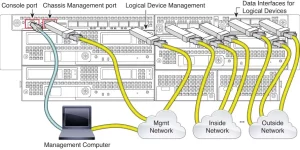
Step 1: Pre-Deployment Checks
1. Verify Compatibility
- Ensure the ASA module runs a supported version (e.g., ASA 9.18+ and FXOS 2.12+).
- Confirm compatibility with neighboring modules (e.g., FTD modules).
2. License Preparation
- Acquire essential licenses:
- Base License: Enables ASA functionality.
- VPN Premium: For advanced site-to-site/remote-access VPN.
- Threat Defense: If integrating with Firepower Management Center (FMC).
3. Network Readiness
- Assign management IPs for FXOS and ASA.
- Prepare VLANs and trunk ports for security zones (e.g., inside, outside, DMZ).
A healthcare provider once faced a 48-hour delay due to an overlooked FXOS-ASA version mismatch—a preventable hiccup.
Step 2: Installing the ASA Module
1. Hardware Installation
- Power off the Firepower 9300 chassis (if adding a new module).
- Insert the ASA module into an available slot, ensuring secure seating.
- Reboot the chassis and verify module recognition via FXOS CLI:
show module
2. Initialize the ASA Module
- Access FXOS Manager (https://<FXOS_IP>) and navigate to Equipment > Modules.
- Click Deploy Application on the ASA module, selecting “ASA” as the application type.
- Allocate resources (CPU, RAM) based on throughput needs (e.g., 8 vCPUs, 16GB RAM for 10Gbps).
Step 3: Configuring the ASA Module
1. Access ASA CLI
- Connect via SSH or console:
ssh admin@<ASA_Management_IP>
2. Basic Setup
- Configure hostname, domain, and passwords:
hostname FPR9300-ASA
domain-name yourcompany.com
passwd <secure_password>
3. Interface Configuration
- Assign security levels and IPs to interfaces (e.g., GigabitEthernet0/0 as “outside”):
interface GigabitEthernet0/0
  nameif outside
  security-level 0
  ip address 203.0.113.1 255.255.255.0
4. NAT and Access Control
- Define NAT policies and ACLs:
object network INSIDE_NET
  subnet 10.0.0.0 255.255.255.0
nat (inside,outside) dynamic interface
access-list OUTSIDE_IN permit tcp any host 203.0.113.10 eq 443
Step 4: Integrating with Firepower Management Center (Optional)
For unified threat management:
1. Register ASA with FMC
- Navigate to Devices > Device Management in FMC and add the ASA as a new device.
- Use the NGIPS license for intrusion prevention and malware detection.
2. Push Policies
- Deploy access control, intrusion, and file policies from FMC to the ASA module.
A financial firm reduced false positives by 60% after fine-tuning FMC correlation rules.
Step 5: Validating and Optimizing
1. Test Connectivity
- Verify traffic flow between zones using
pingandpacket-tracer:packet-tracer input outside tcp 8.8.8.8 443 10.0.0.5 443 detailed
2. Enable Monitoring
- Use ASDM (ASA Device Manager) or CLI to monitor CPU, sessions, and threats:
show cpu usage
show conn count
3. Tune Performance
- Adjust TCP settings and QoS policies for latency-sensitive applications.
- Schedule regular config backups via SFTP.
Avoiding Common Pitfalls
- License Activation Delays: Upload licenses via ASDM before critical deployments.
- Resource Overallocation: Overprovisioning vCPUs can starve other modules.
- Misconfigured HA: For high availability, sync configurations between ASA pairs using failover commands.

Leave a comment