
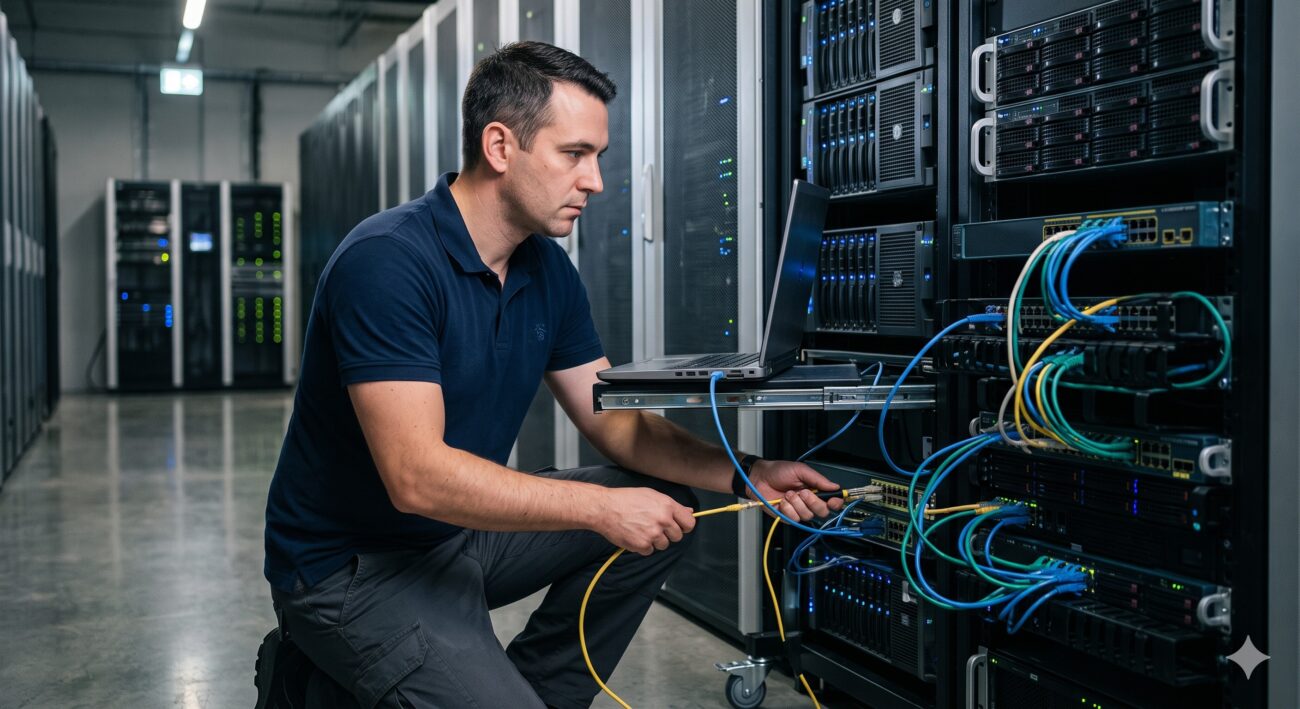
Overview & Thematic Scope
Welcome to our comprehensive technical FAQ for the Cisco Catalyst 9300 Series switch. This guide addresses the most common pre-sales and post-sales questions network engineers and IT procurement specialists have about this enterprise switching platform. We focus on providing definitive answers regarding initial deployment, default credentials, network connectivity, and hardware recovery, ensuring you have the critical information needed to get your Catalyst 9300 operational quickly and efficiently.
Frequently Asked Questions
- Q1: What is the default IP address of the Cisco Catalyst 9300?
- The default IP address of a brand-new, factory-default Cisco Catalyst 9300 switch is 192.168.1.1 . To access the Day 0 setup wizard, you must connect to this address from a web browser. Note that this IP is only active when the switch is in an unconfigured state; once a custom configuration is applied, this default is overridden.
- Q2: What are the default username and password for the Cisco Catalyst 9300?
- The default credentials for the web UI vary by software version. For Cisco IOS XE Amsterdam 17.1.x and later, the username is ‘webui’ and the password is ‘cisco’ . For earlier software versions (pre-Fuji 16.9.x), the username is ‘webui’ and the default password is the device’s chassis serial number . For the initial console connection, the default username is often ‘cisco’ and the password is ‘cisco’ .
- Q3: How do I access the web-based setup utility for the first time?
- To access the web UI, launch a web browser and enter the switch’s IP address (default: https://192.168.1.1) in the address bar . You must complete the Day 0 setup process through this web interface before you can use the device for standard network operations . Ensure your PC is in the same subnet (e.g., 192.168.1.x) to establish connectivity.
- Q4: What should I do if the 192.168.1.1 default IP address does not work?
- If the default IP does not work, the switch likely has a previous configuration or has received a DHCP address from your network. To resolve this, connect to the switch via the console port and use the command ‘show ip interface brief’ to view any assigned IPs . If the switch is used or misconfigured, you may need to perform a factory reset to clear the startup configuration and return to the default IP address .
- Q5: How can I perform a factory reset on my Catalyst 9300 to revert to default settings?
- To perform a factory reset and wipe all custom configurations, use the command ‘factory-reset all’ in privileged EXEC mode . This command erases all user data, NVRAM contents, boot variables, and Cisco IOS images, restoring the switch to its original shipping configuration . The device will then reboot into ROMmon (ROMMON) mode, requiring a new IOS image to be loaded via USB or TFTP .
- Q6: Is there a difference between a default gateway and enabling IP routing on the Cisco 9300?
- Yes. The default gateway is used for management traffic and allows you to reach the switch from a different subnet. It is functional even when IP routing is disabled. The ‘ip routing’ command enables Layer 3 functionality, allowing the switch to route inter-VLAN traffic and use dynamic routing protocols like OSPF . By default, IP routing is disabled, and the switch functions as a Layer 2 host device .
- Q7: Can I connect directly to the 9300’s management port using the default IP?
- Yes, the default IP address 192.168.1.1 is configured on the management VLAN interface (typically VLAN 1) and is intended for initial setup via the management port or any access port . During initial setup, you will assign a specific IP address to the management interface based on your network’s subnet mask and define a default gateway for remote accessibility .

Leave a comment