

The Modern Network Imperative: Why CLI Mastery of H3C Switch Configuration Commands is Non-Negotiable
In today’s high-stakes enterprise environment, network performance is synonymous with business performance. With the surge in bandwidth-intensive applications and the proliferation of IoT devices, the underlying switching infrastructure must be meticulously optimized. While Software-Defined Networking (SDN) and GUI-based management offer convenience, they often abstract the granular control required to troubleshoot complex issues and achieve true performance efficiency. For network architects and systems integrators, mastering the H3C Switch Configuration Command line interface (CLI) remains the definitive path to overcoming network bottlenecks. This manual provides an exhaustive, data-driven guide to the Comware 7 CLI, from foundational access to advanced traffic engineering, designed to equip you with the expertise needed for enterprise-grade network management .

Navigating the Comware 7 CLI Hierarchy: A Deep Dive
The power of H3C switches lies in the Comware 7 operating system, which organizes commands into a hierarchical view structure. Understanding this hierarchy is the first step in executing effective H3C Switch Configuration Commands. Upon establishing a console or SSH session, you are placed in User View (
Entering and Exiting System and Feature Views
The transition is initiated with the critical command system-view. This places you in System View ([Sysname]), the root for all global configurations . From here, you can drill down into specific feature views, such as Interface View ([Sysname-GigabitEthernet1/0/1]) using the interface command, or VLAN View ([Sysname-vlan10]) using the vlan command. The ability to quickly enter and exit these views is fundamental to configuration efficiency. Use the quit command to ascend one level or return (or Ctrl+Z) to jump directly back to User View . This logical hierarchy ensures that configurations are applied with precision, preventing unintended global impacts.
Leveraging CLI Online Help and Shortcuts
To expedite the configuration process, the Comware 7 CLI offers context-sensitive online help. Simply type a question mark (?) at any prompt to display all available commands. For instance, entering display ? will list all diagnostic and status commands. For faster input, H3C supports command abbreviations; for example, int g1/0/1 is equivalent to interface GigabitEthernet1/0/1 . The Tab key auto-completes partial commands, while the Up and Down arrow keys recall the command history buffer, which is set to retain the last 10 commands by default but can be adjusted with the history-command max-size command . These features significantly reduce the potential for syntax errors and accelerate deployment.
| Command View | Prompt | Primary Function |
|---|---|---|
| User View | Basic connectivity, debugging, file management, and system-level operations. | |
| System View | [Sysname] | Global configuration settings that affect the entire device. |
| Interface View | [Sysname-GigabitEthernet1/0/1] | Configuration of specific physical or logical port parameters. |
| VLAN View | [Sysname-vlan10] | Configuration of VLAN specific attributes, such as name and member ports. |
| User Line View (VTY) | [Sysname-line-vty0] | Configuration of login user attributes for Telnet/SSH access. |
Overcoming Bandwidth and Latency Bottlenecks with Advanced QoS Commands
One of the primary sources of network bottlenecks is uncontrolled traffic. Implementing Quality of Service (QoS) is essential for prioritizing critical applications like VoIP or video conferencing. The H3C Switch Configuration Command set provides robust QoS tools that operate at wire speed, with ASIC-level processing ensuring minimal latency—often measured in microseconds—while maintaining a Mean Time Between Failures (MTBF) of over 500,000 hours for carrier-grade reliability .
Traffic Classification and Policy Implementation
To overcome congestion, you must classify traffic and apply policies. This is achieved by creating a traffic classifier to define match criteria (e.g., DSCP values, ACLs) and a traffic behavior to specify the action (e.g., rate limiting, priority marking). For example, to limit inbound traffic on a port to 100 Mbps, you would use the following sequence of H3C Switch Configuration Commands :
- system-view
- traffic classifier 100Mbps
- if-match any (Matches all traffic)
- traffic behavior Limit100
- car cir 100000 cbs 187500 (Sets CIR to 100,000 kbps)
- qos policy LAN-Limit
- classifier 100Mbps behavior Limit100
- interface GigabitEthernet1/0/1
- qos apply policy LAN-Limit inbound
Redundancy and High Availability: The IRF Configuration Protocol
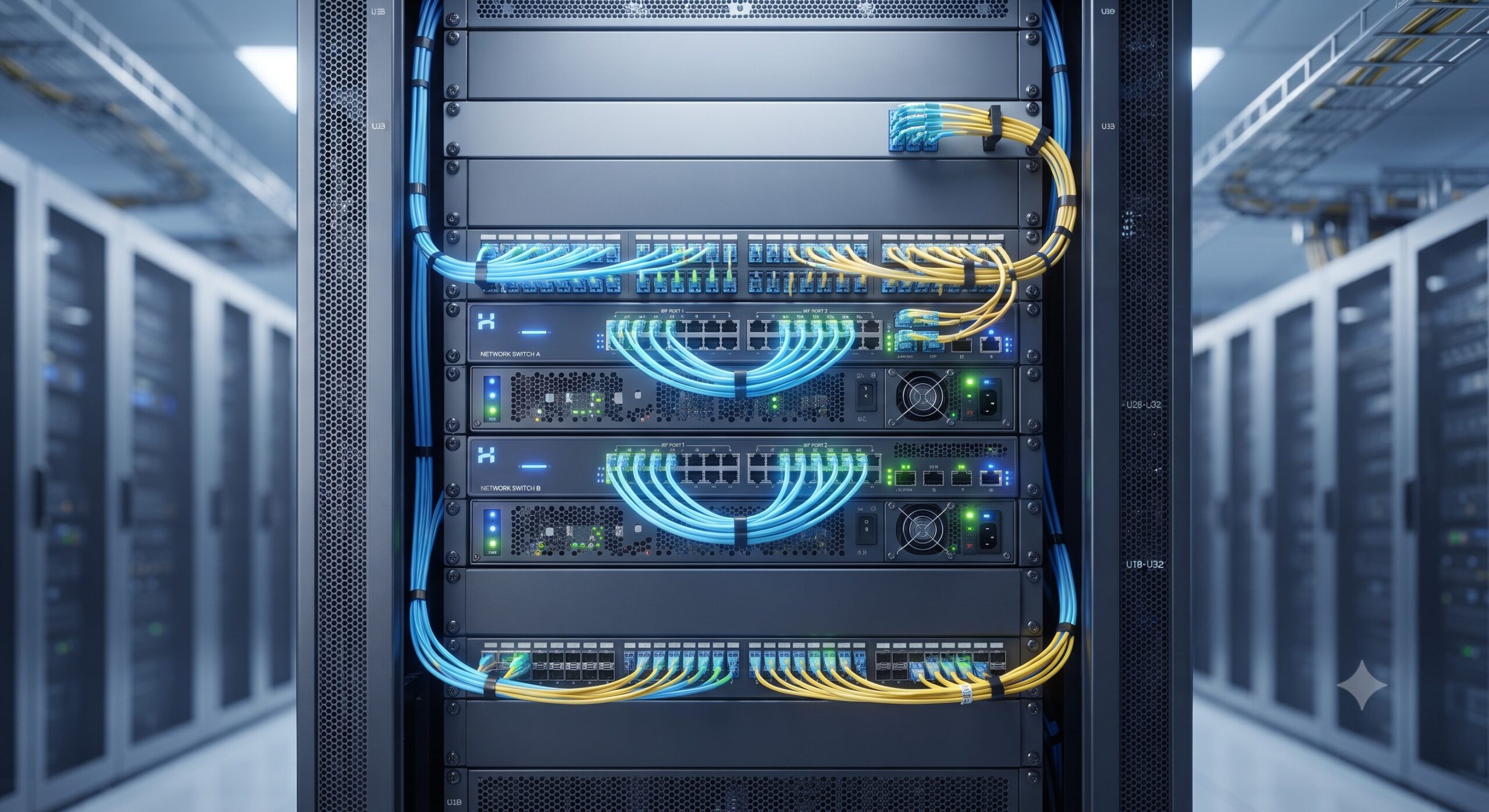
Another critical aspect of enterprise network design is eliminating single points of failure. The H3C Intelligent Resilient Framework (IRF) is a proprietary virtualization technology that creates a logical fabric from multiple physical switches, achieving data center-class availability and 1:N redundancy .
IRF Configuration Best Practices
Configuring IRF requires meticulous planning and specific H3C Switch Configuration Commands. First, assign member IDs and priorities: irf member 1 renumber 1 and irf member 1 priority 32. Next, bind the physical IRF ports (e.g., irf-port 1/1 and port group interface Ten-GigabitEthernet1/0/49). After activating the configuration with irf-port-configuration active, the switches will negotiate a master and form a single logical device, presenting a unified management interface and simplifying network topologies . This capability is vital for data centers and large campus networks, providing a scalable and resilient architecture that can handle high-density environments without the complexity of traditional protocols like Spanning Tree Protocol (STP).
Essential Diagnostic H3C Switch Configuration Commands for Troubleshooting
When bottlenecks or failures occur, rapid diagnosis is key. A suite of display commands provides invaluable insights into the switch’s operational state. These commands are the backbone of any troubleshooting effort.
- display interface brief: This command offers a quick overview of all interfaces, showing their physical and protocol states, as well as packet statistics. A port showing “DOWN” indicates a physical layer issue, while “ADM” indicates it has been administratively shut down .
- display cpu-usage: High CPU utilization can point to control-plane attacks or inefficient routing protocols .
- display logbuffer: The log buffer records all system events and errors, providing a chronological record to pinpoint the root cause of configuration or hardware failures .
- display arp and display mac-address: These commands are critical for verifying Layer 2 and Layer 3 address resolution, quickly identifying IP conflicts or MAC address table exhaustion .
Automation and Integrator’s Blueprint: Scripting and Configuration Management
For systems integrators, managing configurations across hundreds of devices is a significant challenge. Manual configuration is error-prone and inefficient. The Comware 7 CLI supports automation through several mechanisms. You can use Tcl scripting directly in the CLI by entering tclsh to enter Tcl configuration view . This allows for executing loops and conditional statements. Furthermore, H3C supports Python and NETCONF/YANG models for scalable, programmatic configuration management, enabling seamless integration with orchestration platforms .
Configuration Backup and Migration
Finally, a robust configuration management strategy must include backup and migration. A typical H3C Switch Configuration Command sequence involves using display current-configuration to view the running configuration and save to write it to the startup configuration file . For automated backup, the CLI can be scripted via SSH to execute display saved-configuration and capture the output, ensuring rapid recovery in the event of a hardware failure .
Conclusion
Mastering the H3C Switch Configuration Command line is an indispensable skill for any network professional tasked with maintaining high-performance, resilient enterprise networks. From the foundational Comware 7 CLI hierarchy and advanced QoS configurations to the implementation of IRF for redundancy and the use of automation for efficiency, the command line offers the deepest level of control and insight. By leveraging the expertise and command sequences detailed in this guide, network architects can effectively overcome performance bottlenecks, ensure carrier-grade reliability, and drive quantifiable operational gains for their organizations.
Leave a comment